A tour of the screens

Pick a module and click the steps; click an image to enlarge it. Screens are shown with sample plant data; the application interface is in Turkish.

OPLAN · M1
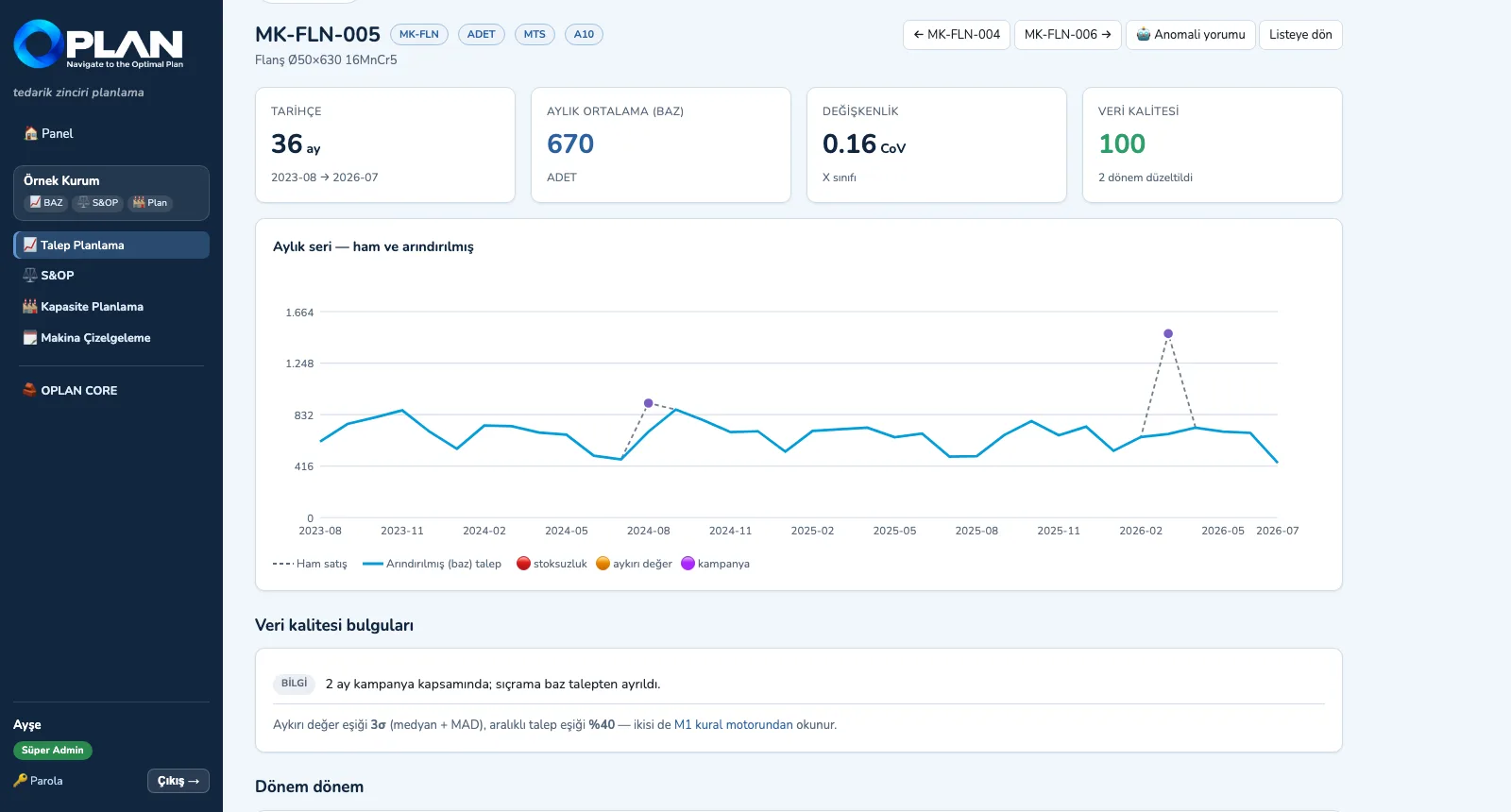
M1 — Cleanse the history
M1 · Explore

Screens are shown with sample plant data; the application interface is in Turkish.

M1 · Forecast

Demand Planning

From history to an approved demand plan in four steps.
M1 — Cleanse the history
1. Cleanse the historyRaw sales and cleansed (base) demand on one chart; promotions, stock-outs and outliers are marked, and the reason for every correction is listed period by period.
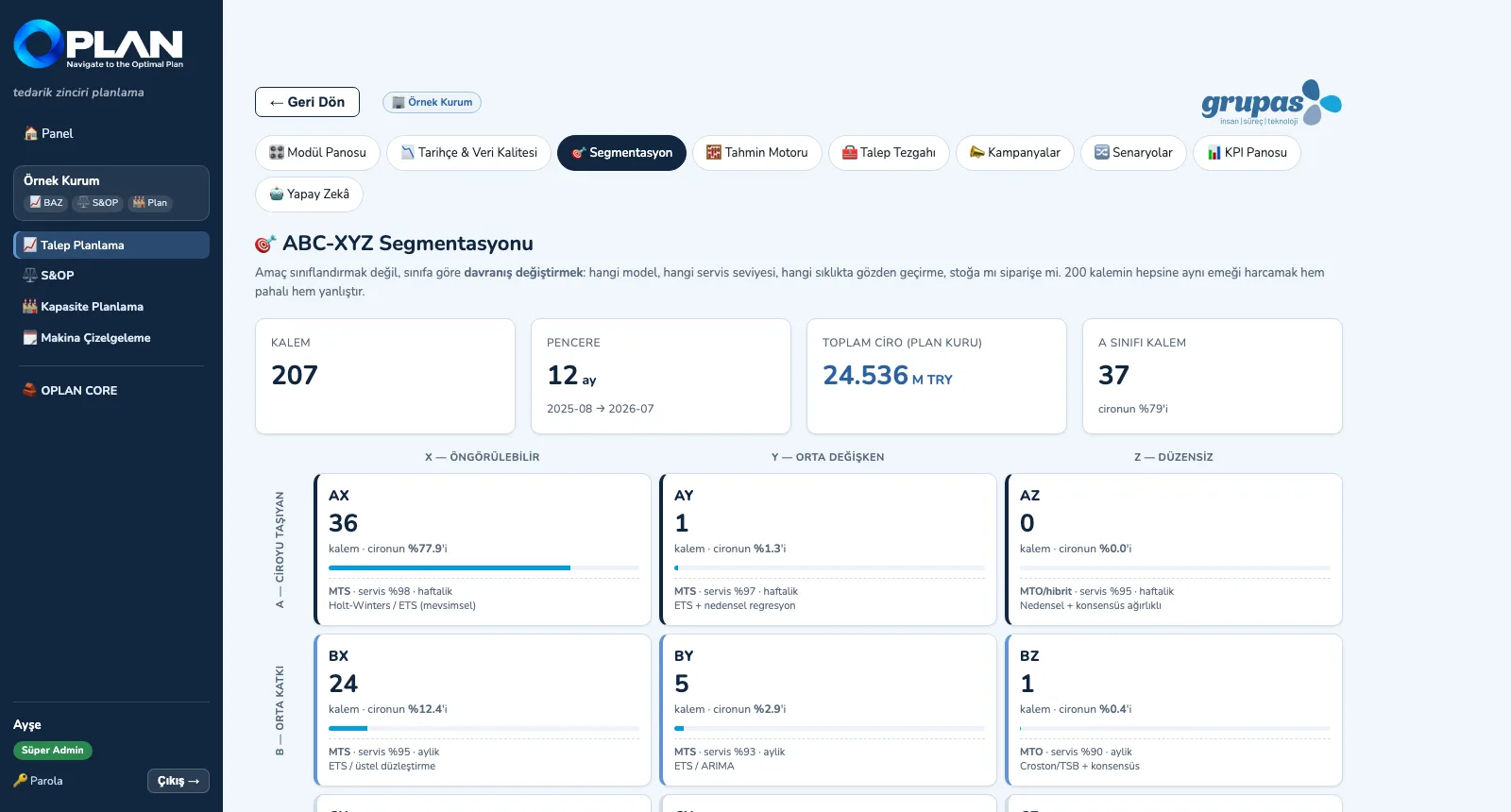
M1 — Segment the items
2. Segment the itemsABC by revenue contribution, XYZ by variability; each of the nine boxes carries its own model, service level and review policy.
M1 — Generate the forecast
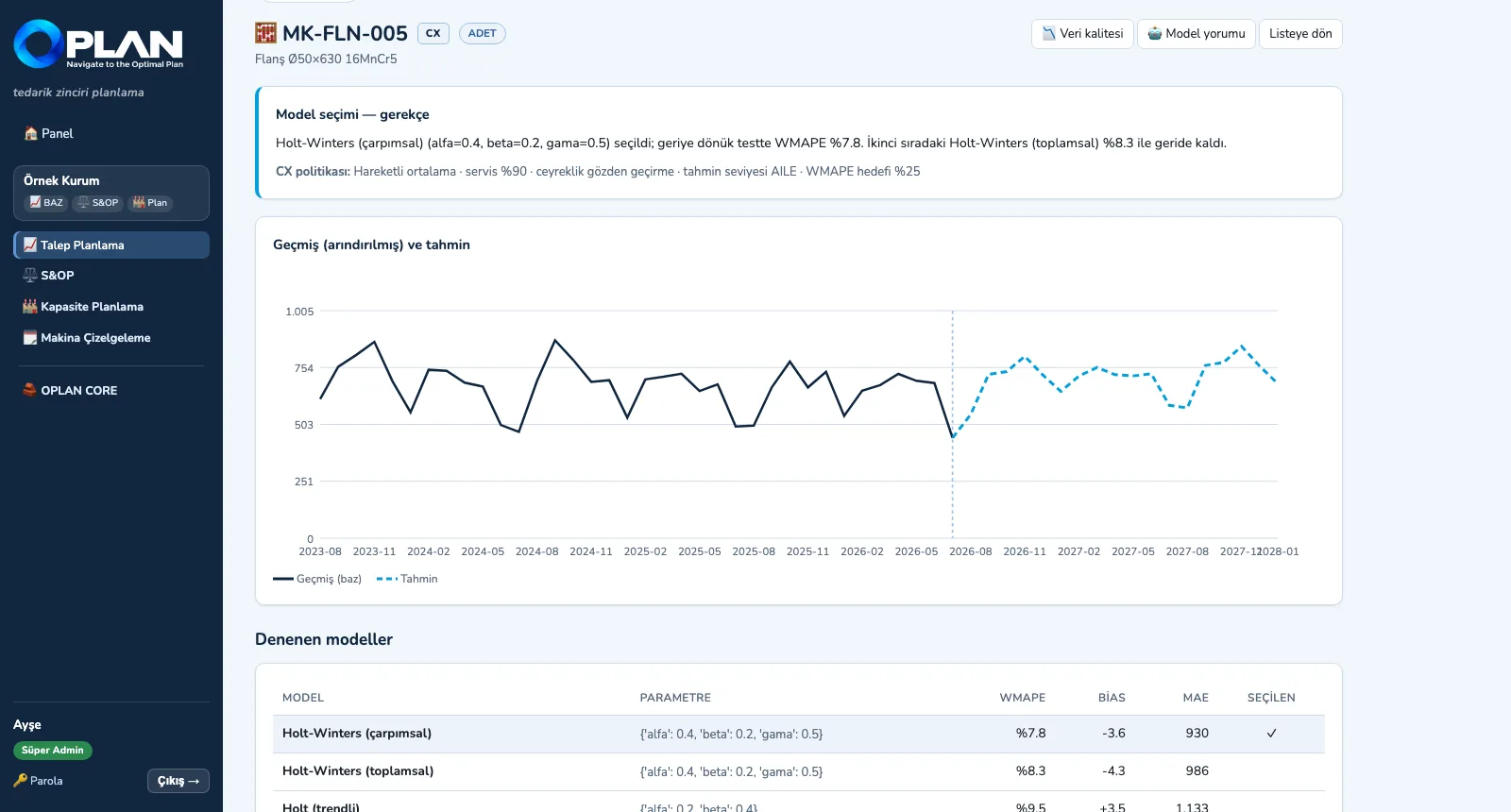
3. Generate the forecastThe engine backtests the models for every item, picks the one with the lowest WMAPE and writes down why; every model tried is in the table.
M1 — Agree and approve
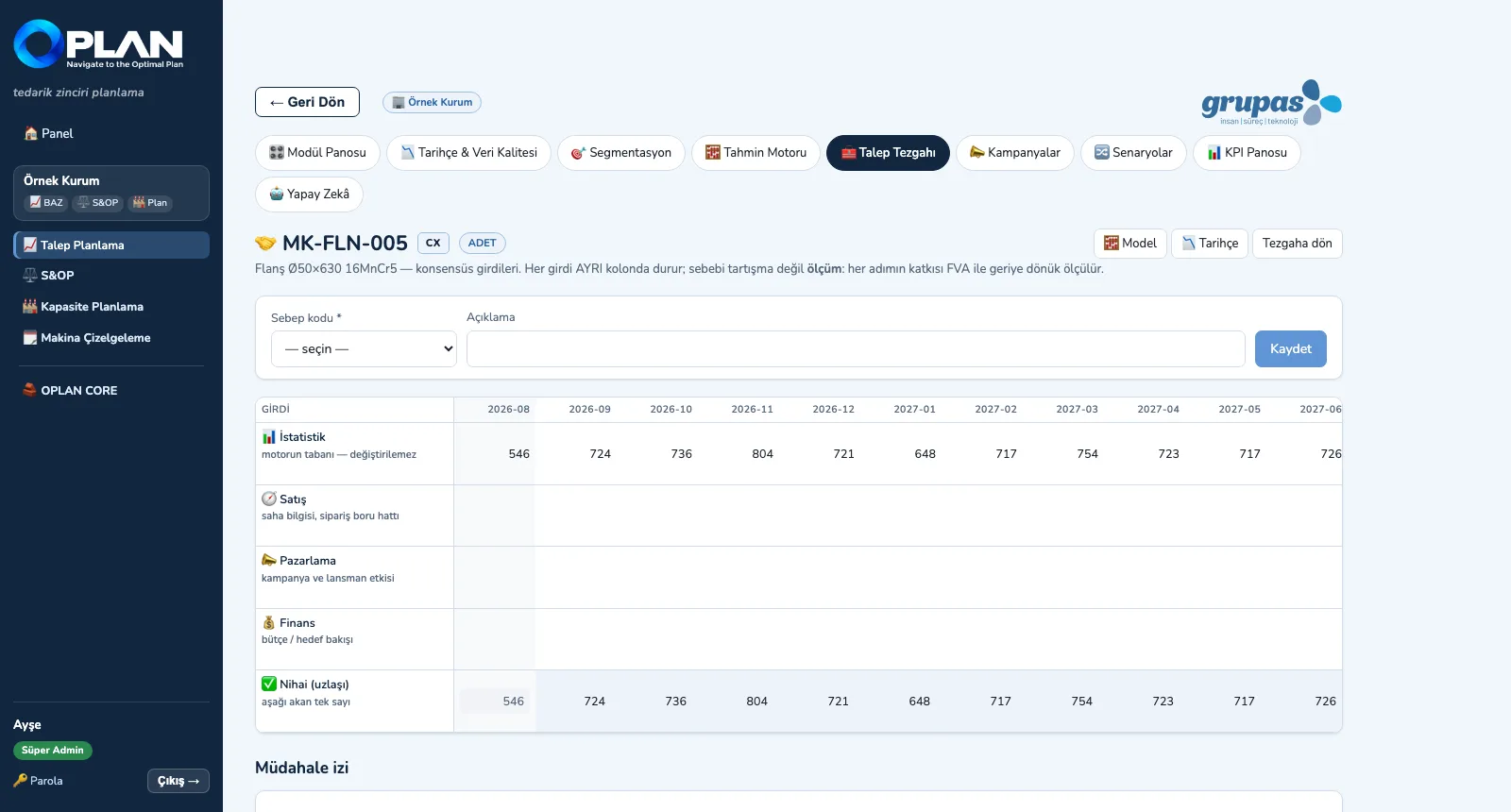
4. Agree and approveSales, marketing and finance enter their inputs in their own columns; the final figure changes with a reason code and, once the version is approved, moves on to S&OP.

M1 · Explore

M2 · Balance

S&OP — Sales and Operations Planning

Build an S&OP cycle and balance it through four views.
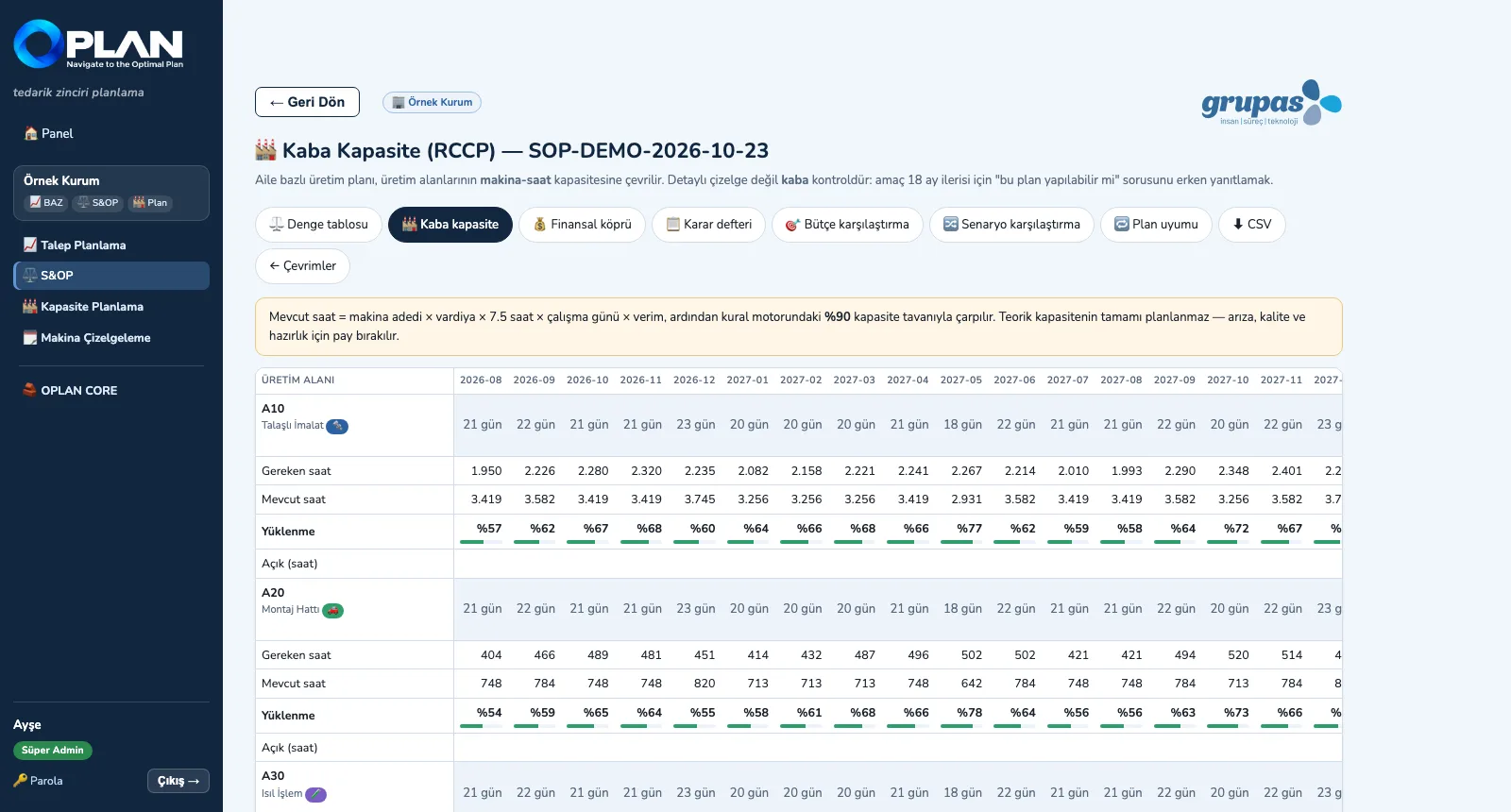
M2 — Build the cycle
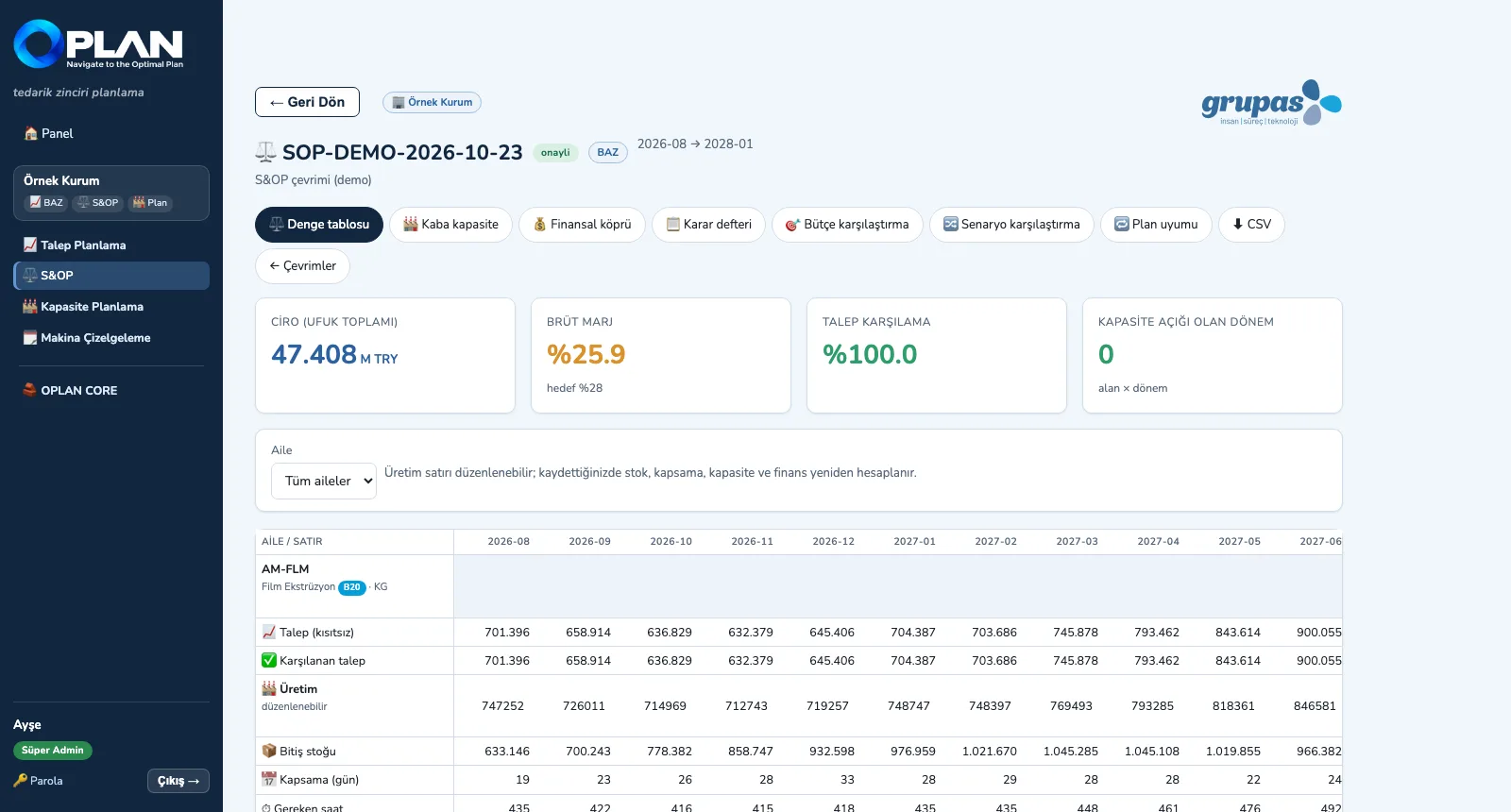
1. Build the cycleSelect the demand version; OPLAN aggregates it to family level and builds the production plan, the inventory projection and days of cover.
M2 — Check capacity
2. Check capacityFamily production is converted into machine hours; load and open hours by production area × month are visible 18 months ahead.
M2 — Talk in money
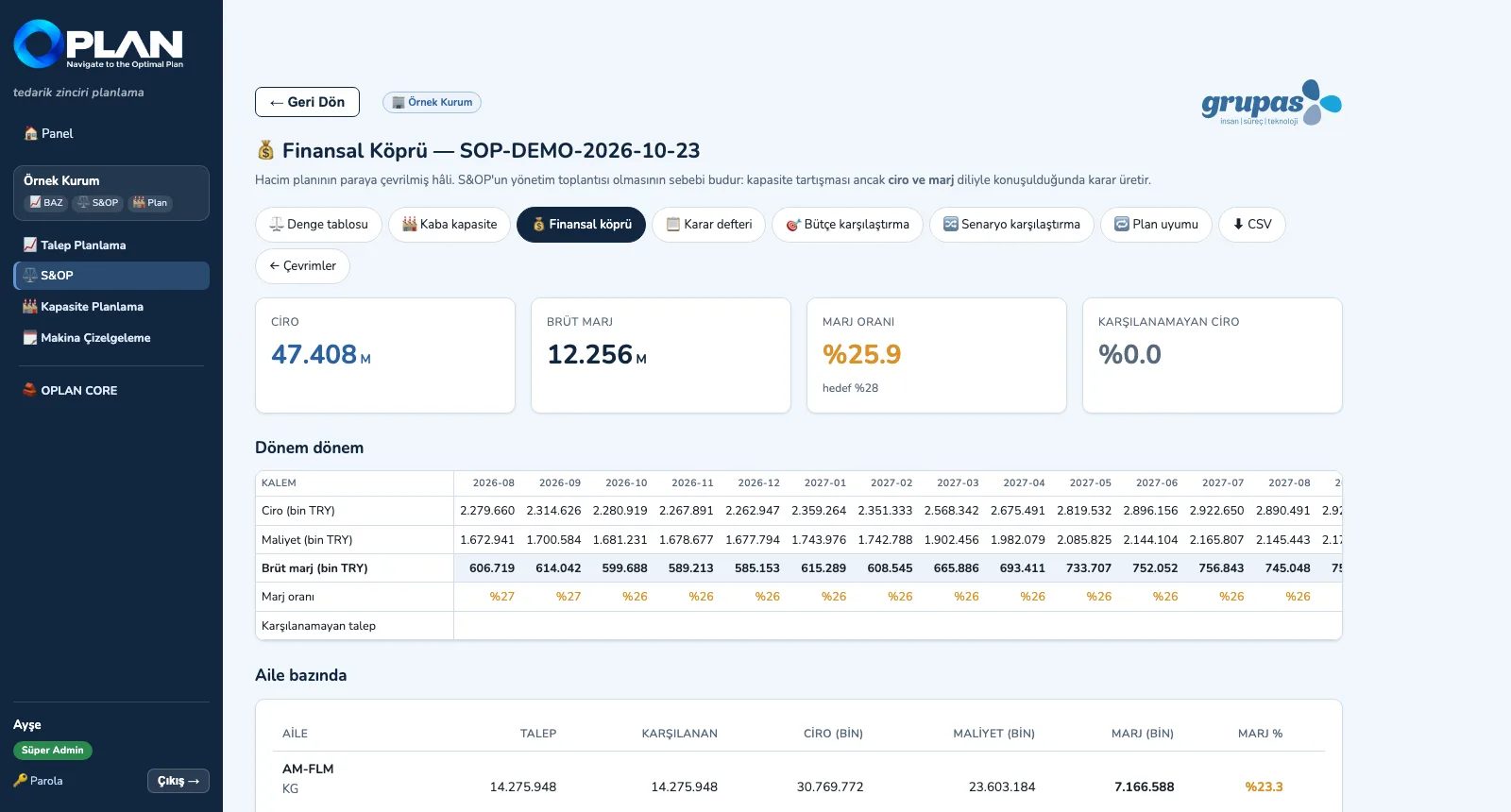
3. Talk in moneyThe volume plan is converted into revenue, cost and margin — a financial bridge by period and by family.
M2 — Compare with the budget
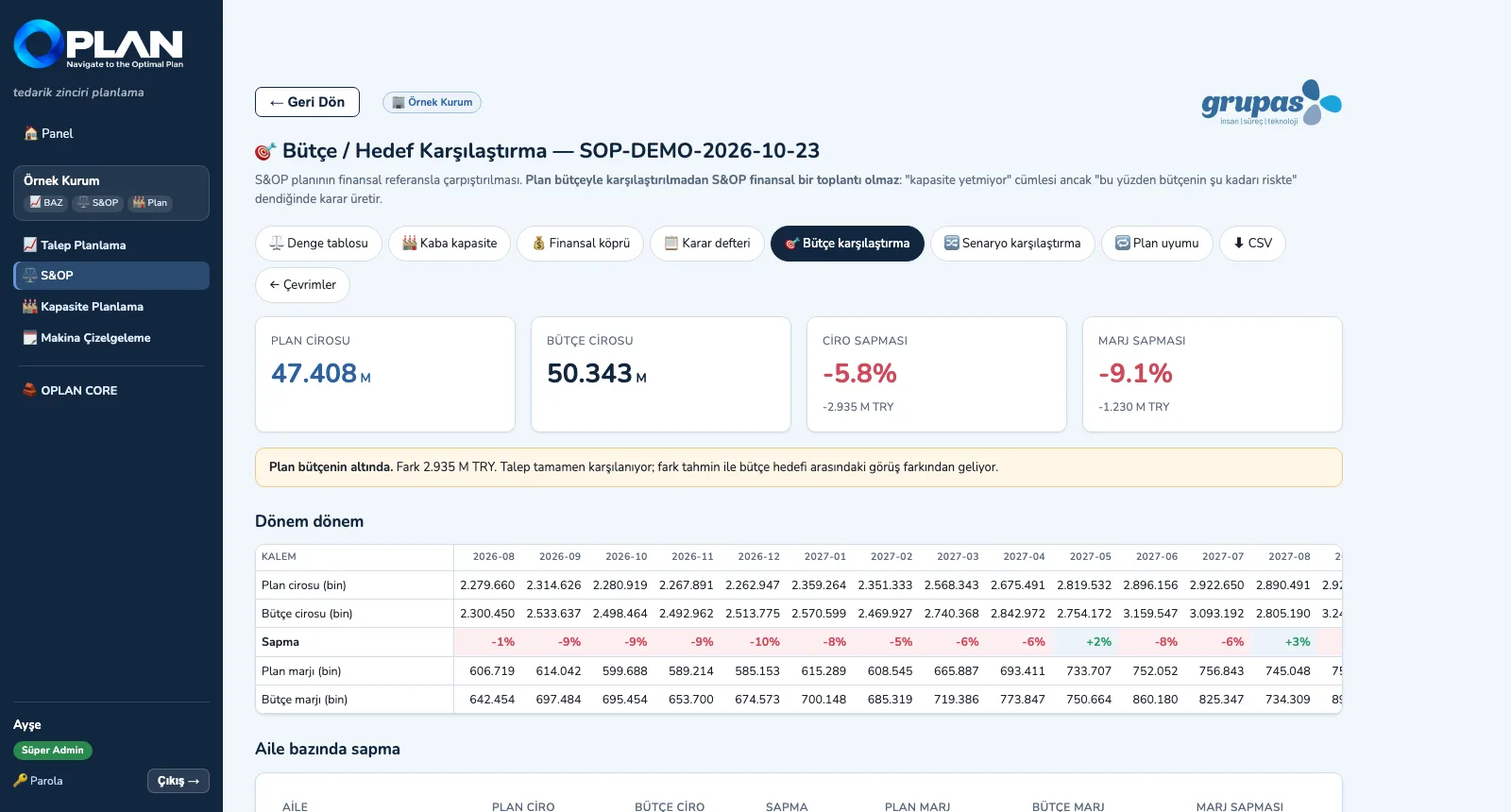
4. Compare with the budgetPlan revenue and margin are compared with the budget by period and family; the source of the gap is spelled out.

M2 · Explore

M3 · Load

Finite Capacity Planning

Build the plan, see the bottleneck, check material and shipping.
M3 — Read the load board
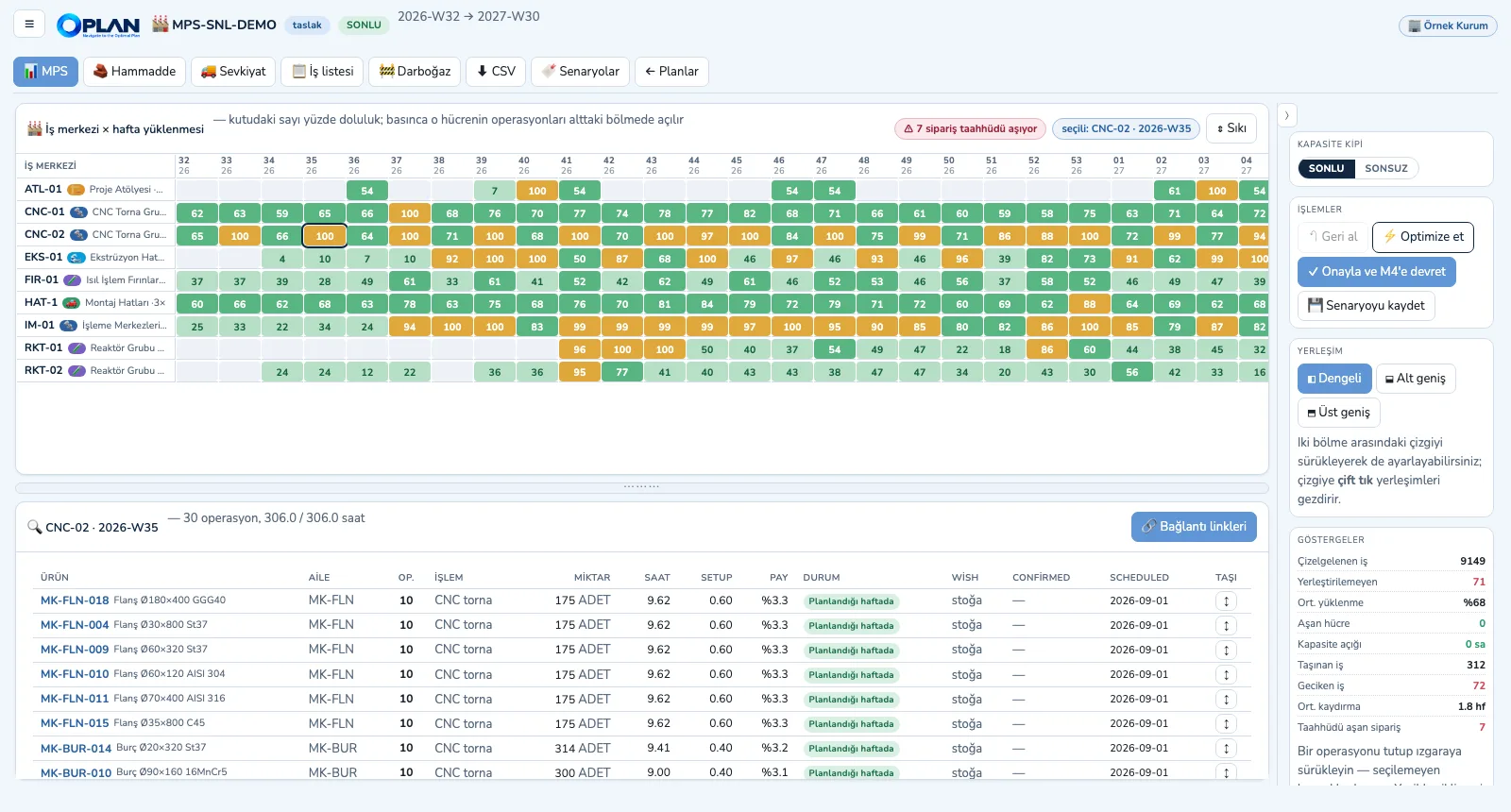
1. Read the load boardEach box is one work centre × week; click it and the operations in that cell are listed below, ready to be dragged to another cell.
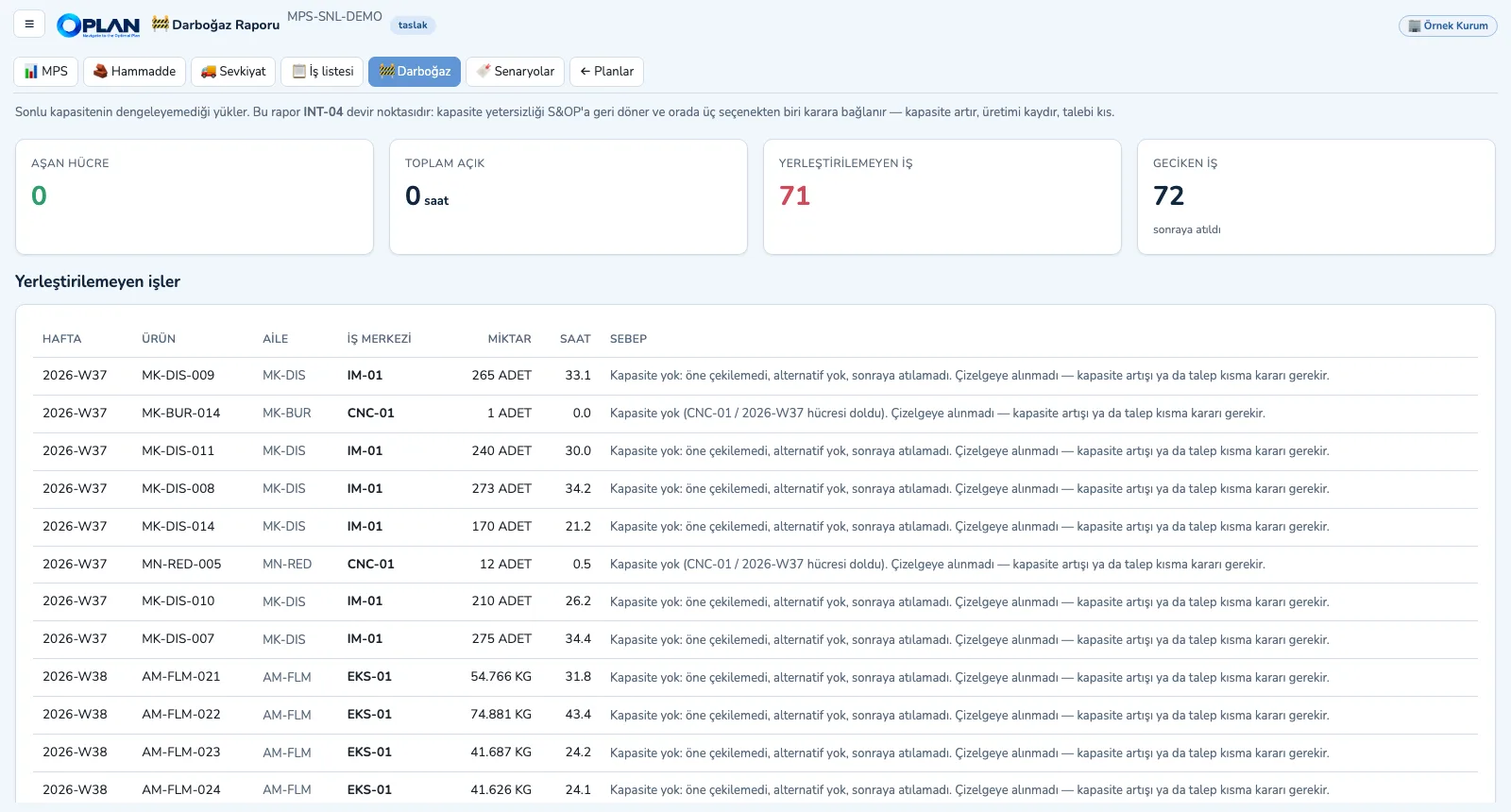
M3 — Report the bottleneck
2. Report the bottleneckWork that could not be pulled forward, has no alternative and could not be pushed back is listed with the reason and goes back to S&OP.
M3 — Check raw materials
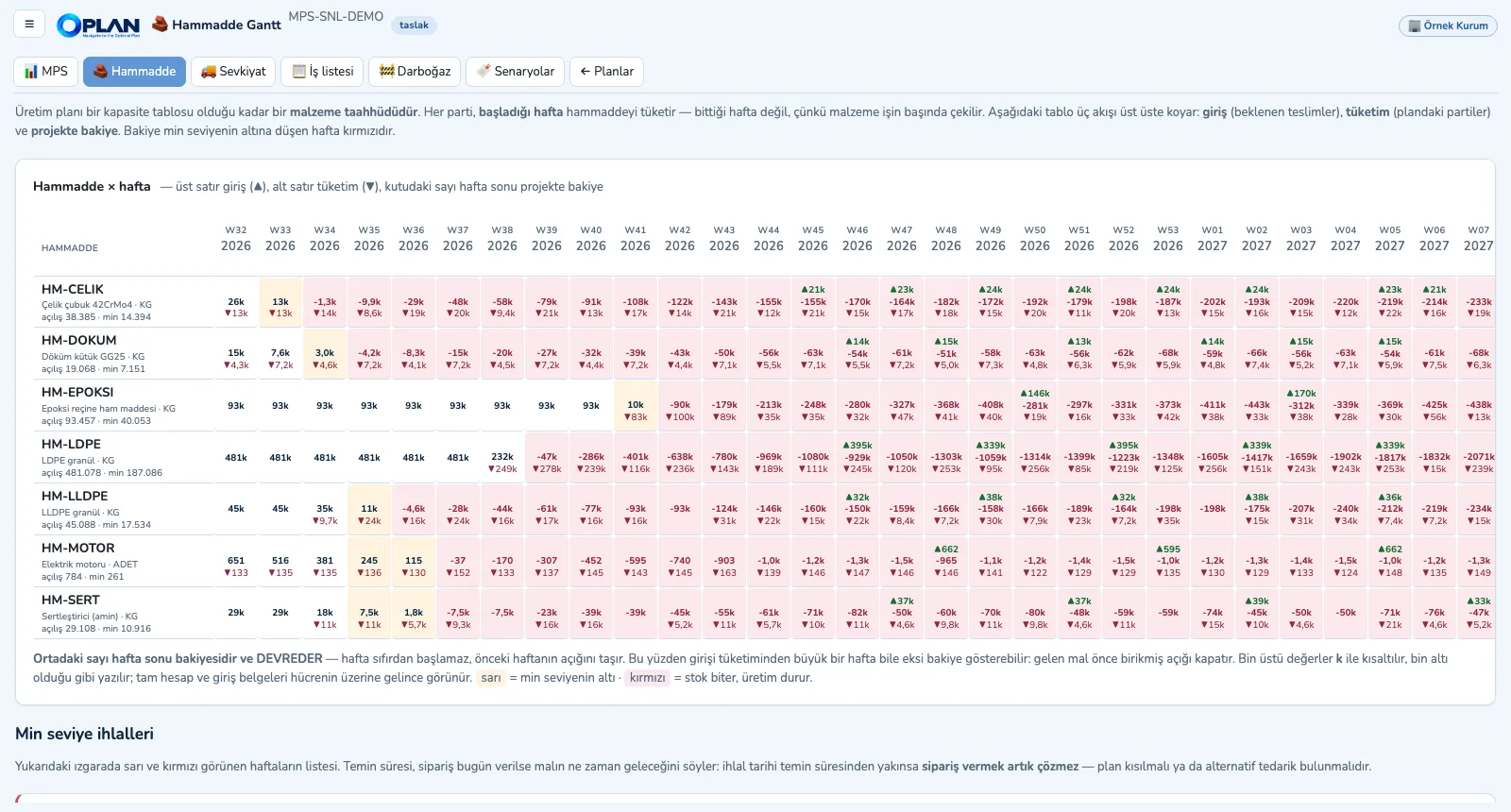
3. Check raw materialsThe plan consumes material in the week a batch starts; receipts, consumption and projected balance per week, minimum-level breaches in red.
M3 — Plan shipments
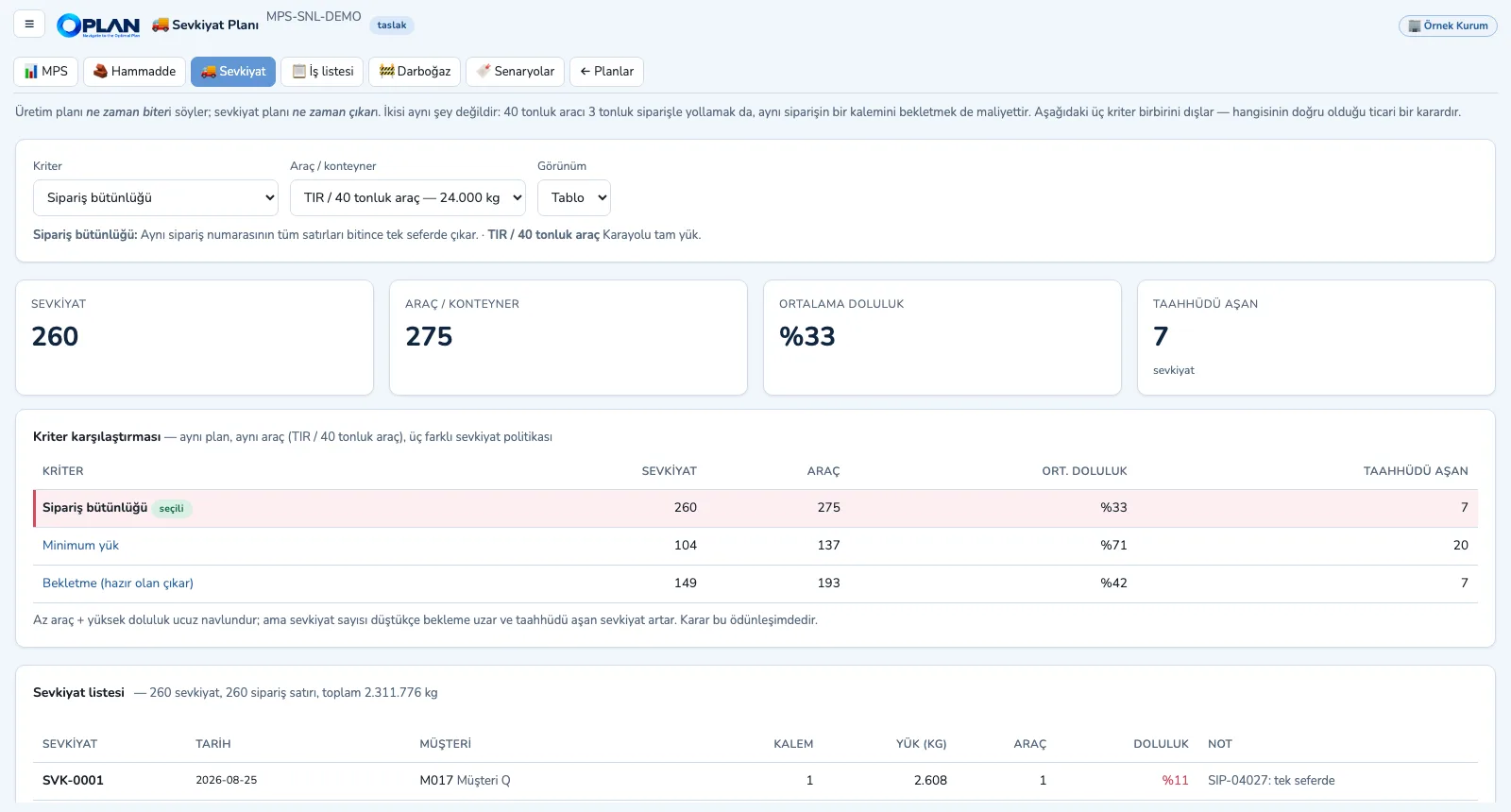
4. Plan shipmentsShipments are formed by order completeness, minimum load or hold-back criterion and by vehicle type; fill rate and late promises are compared side by side.

M3 · Explore

M4 · Sequence

Machine Scheduling

Build the schedule, define changeovers and intermediate operations, read the ship date.
M4 — Build the schedule
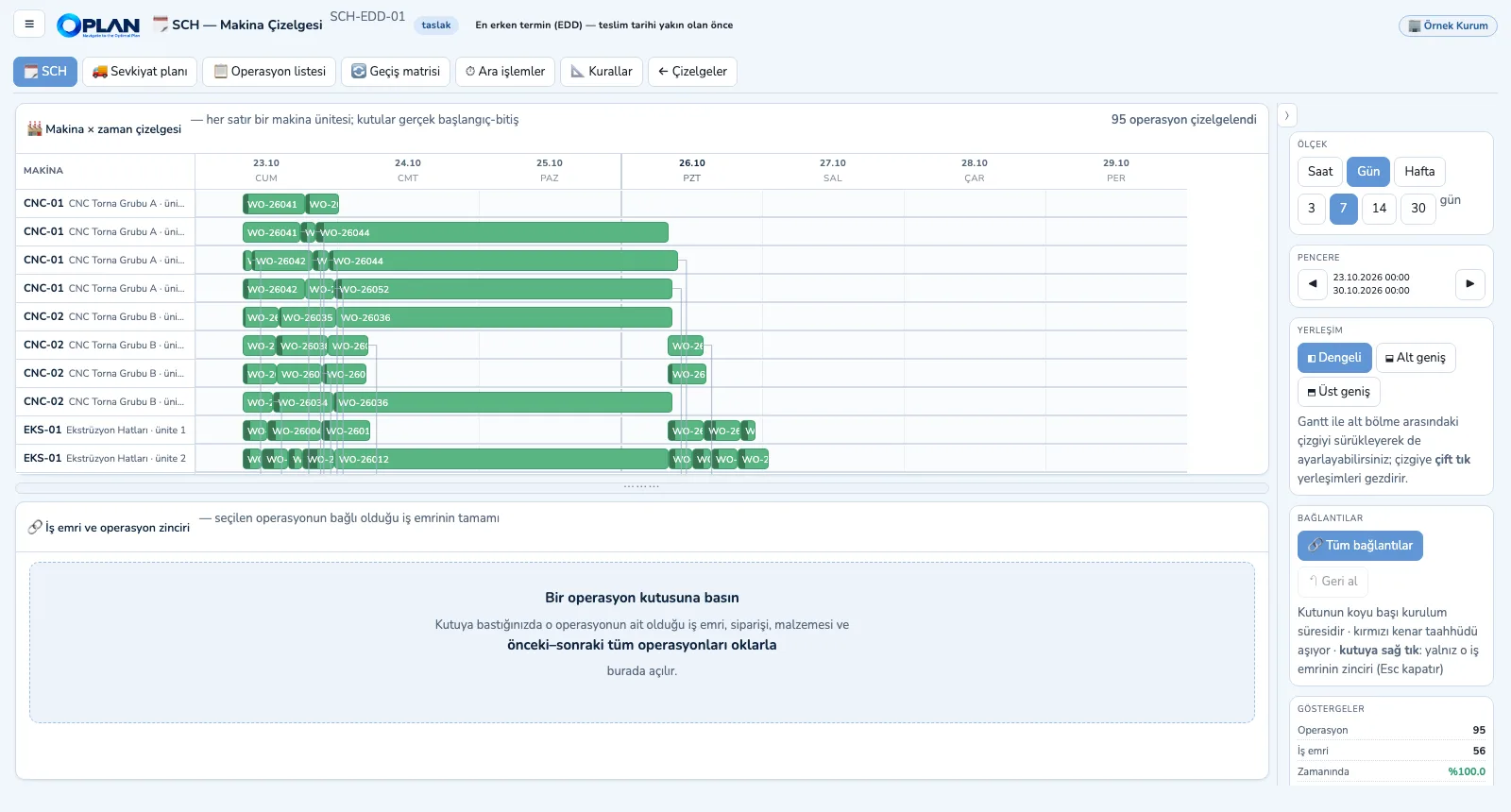
1. Build the scheduleChoose the dispatching rule; all operations of open work orders are sequenced to the minute on machine units. Click a box to open the whole work-order chain.
M4 — Fill in the changeover matrix
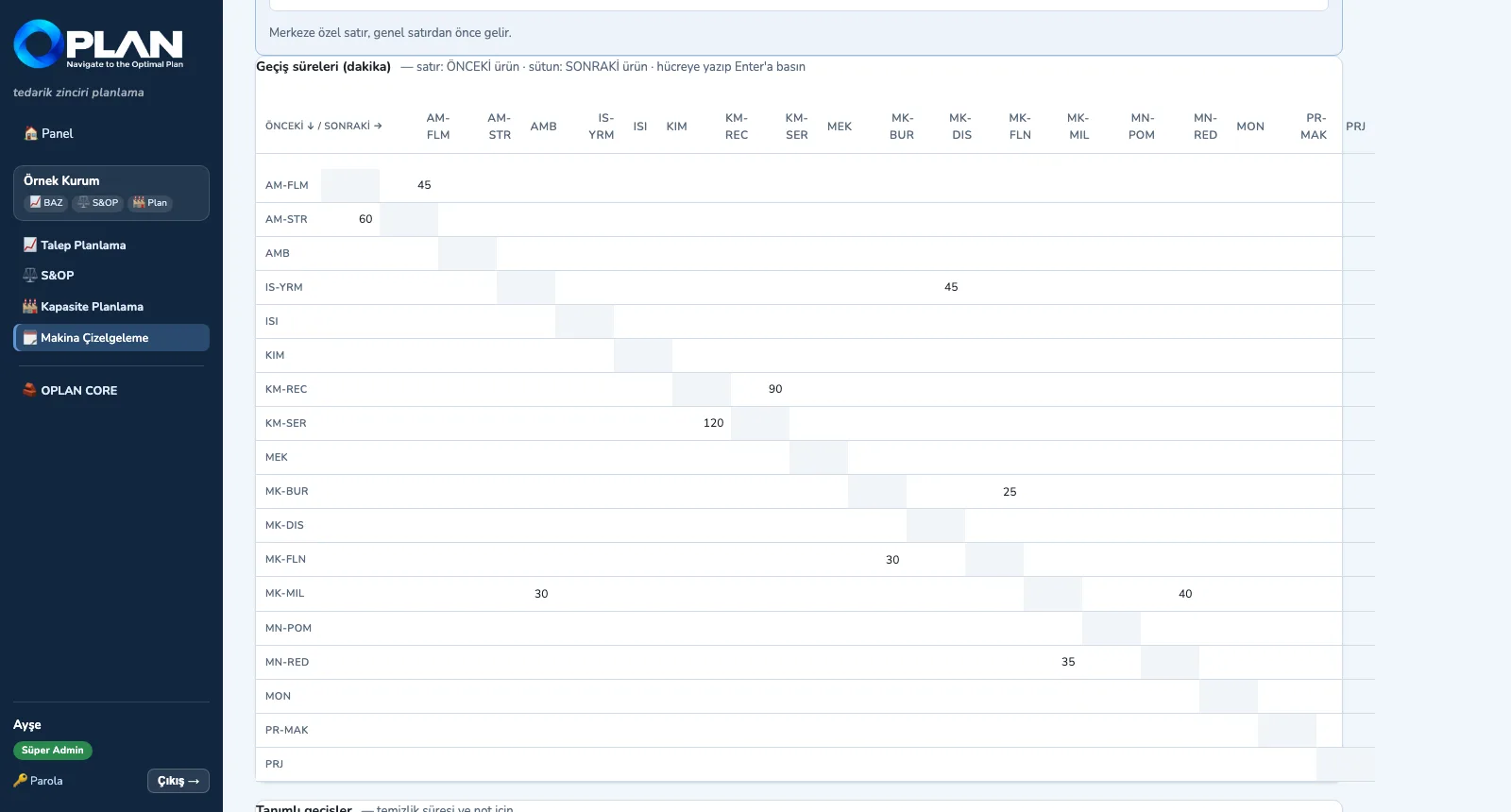
2. Fill in the changeover matrixRows are the previous item or family, columns the next; light-to-dark and the reverse can take different times.
M4 — Define intermediate operations
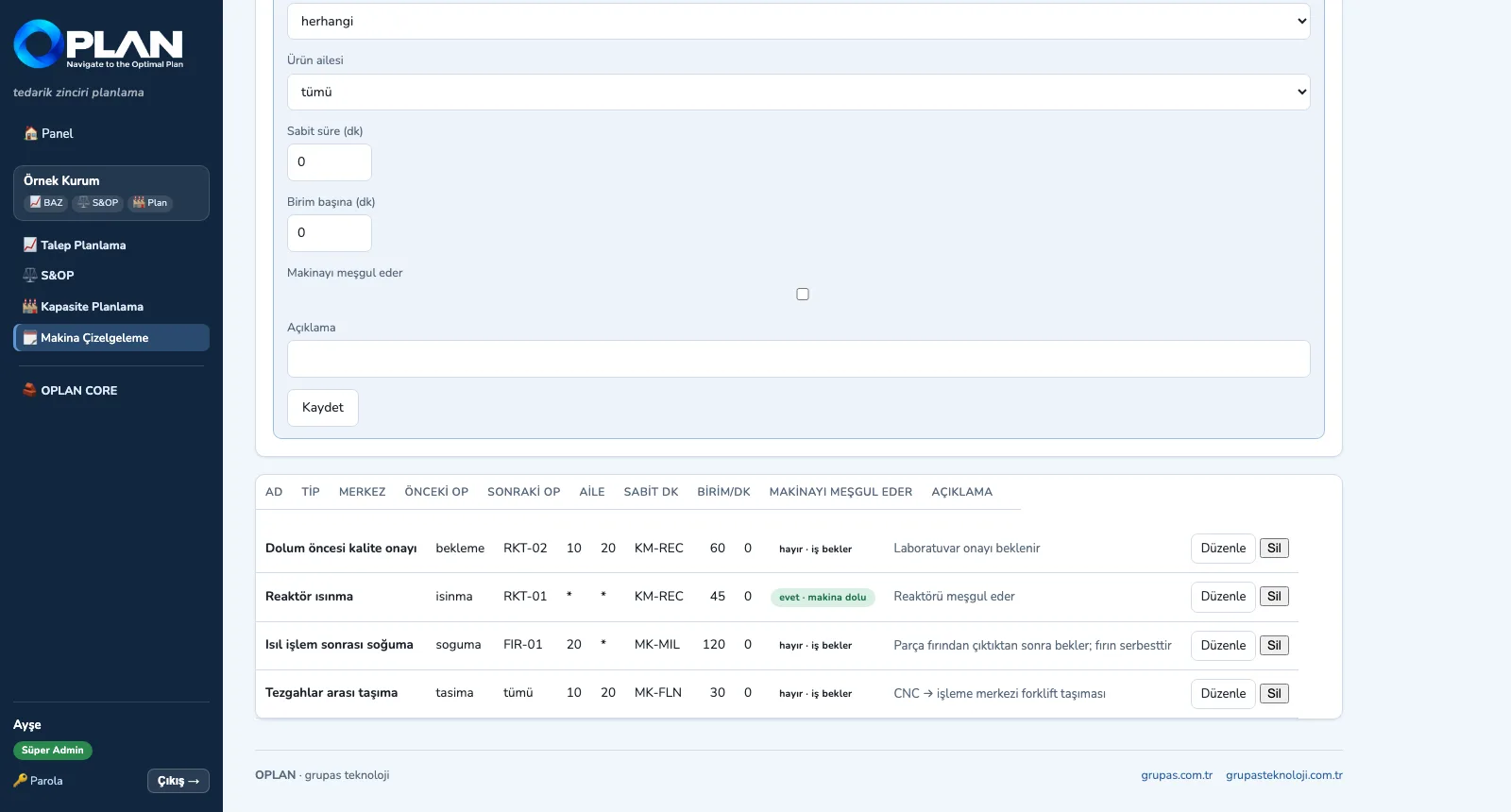
3. Define intermediate operationsCooling or transport makes the job wait but frees the machine; warm-up occupies the machine — the two are kept apart.
M4 — Read the ship date
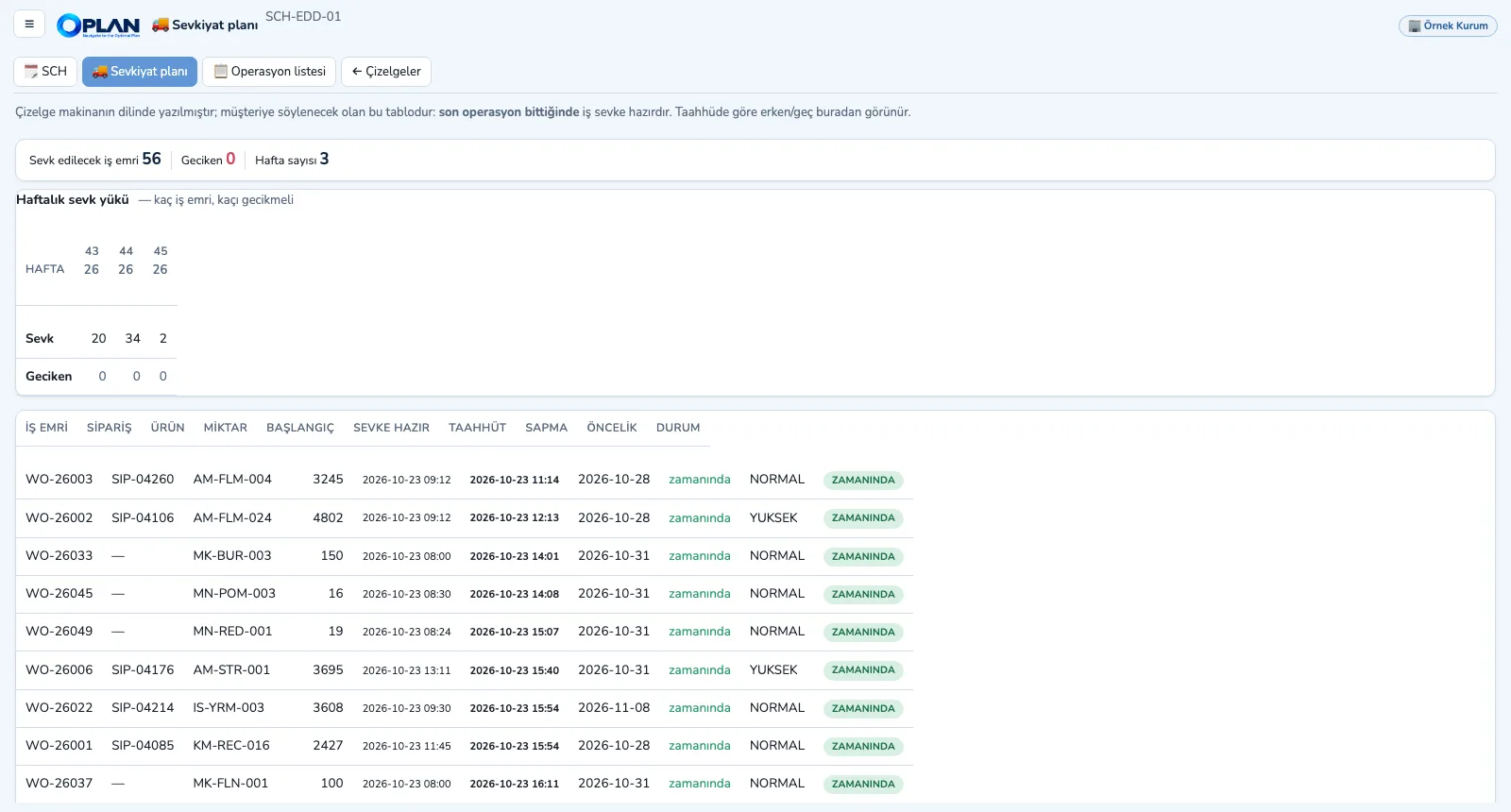
4. Read the ship dateOnce the last operation ends the job is ready to ship; early / late status against the promise and the weekly shipping load are in the table.

M4 · Explore

CORE · Define

The OPLAN Core

Set up the core for your company.
CORE — Define the production structure
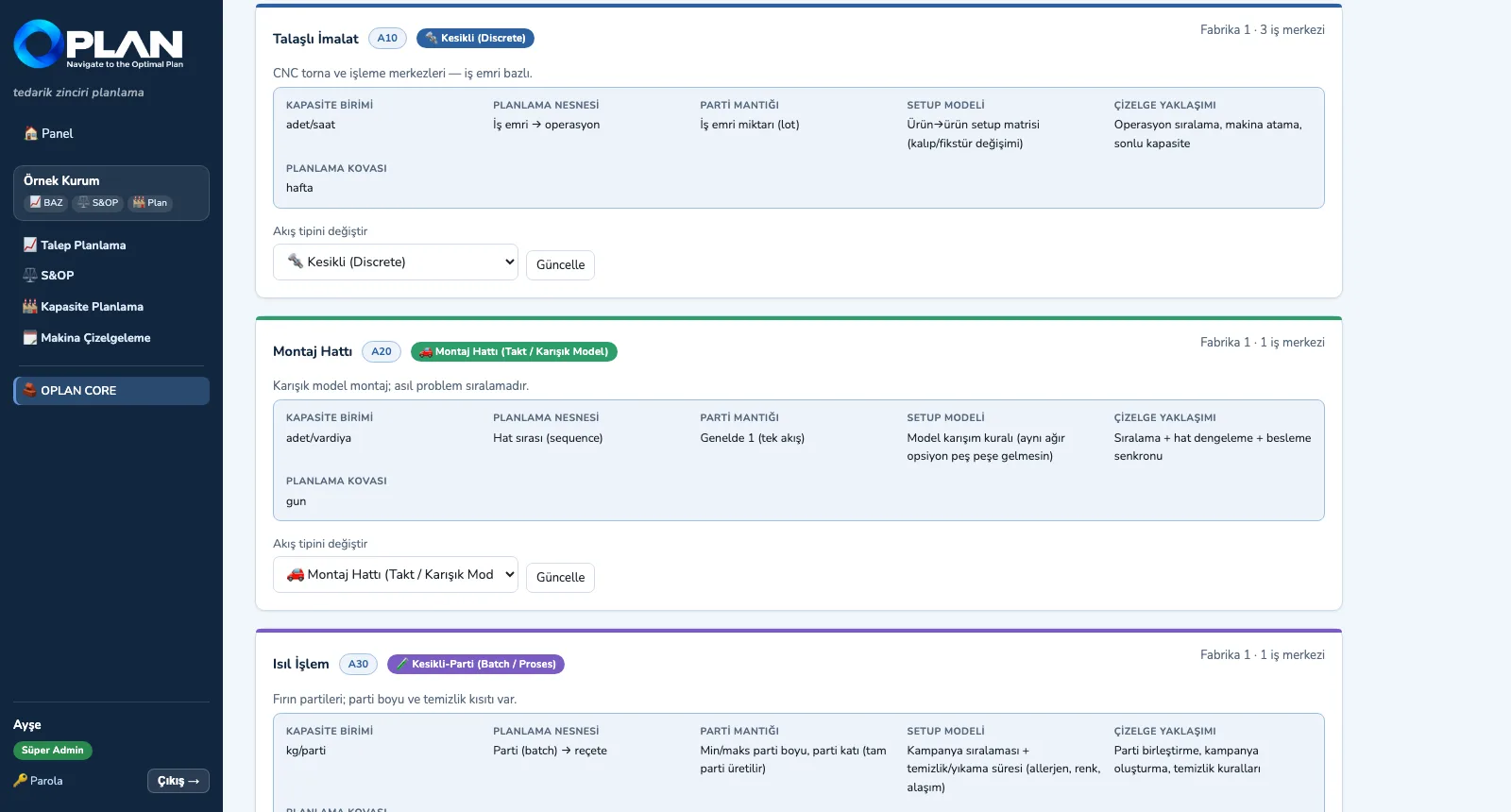
1. Define the production structureEnter sites, production areas and work centres; each area's flow type sets its capacity unit, batch and setup model.
CORE — Load master data
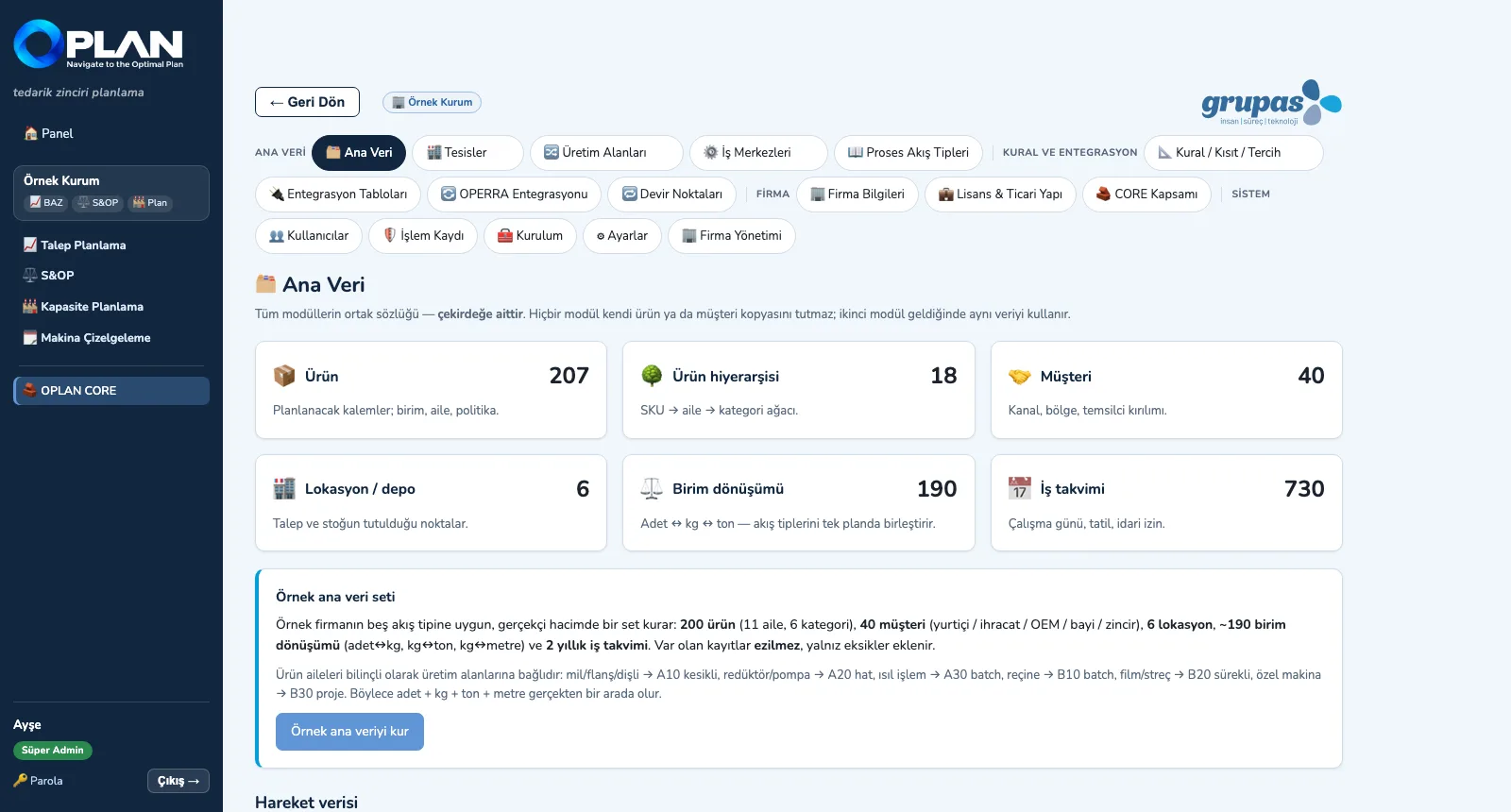
2. Load master dataSix entities are managed with one screen layout; CSV column names match the integration contract, so a file from the ERP loads directly.
CORE — Set the rules
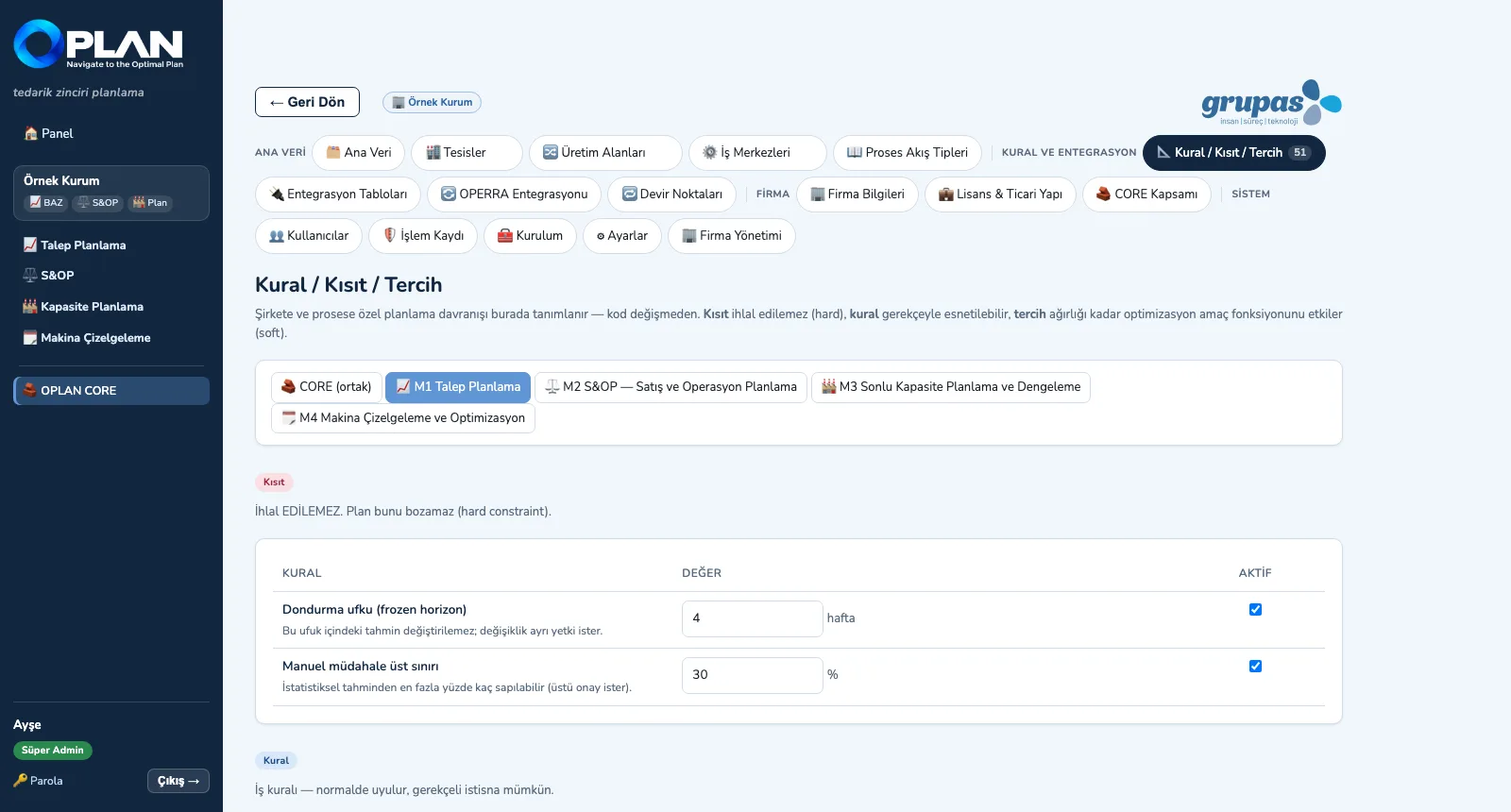
3. Set the rulesFrozen horizon, capacity ceiling, shift limits, dispatching rule … module by module as constraints, rules and preferences.
CORE — See the hand-over points
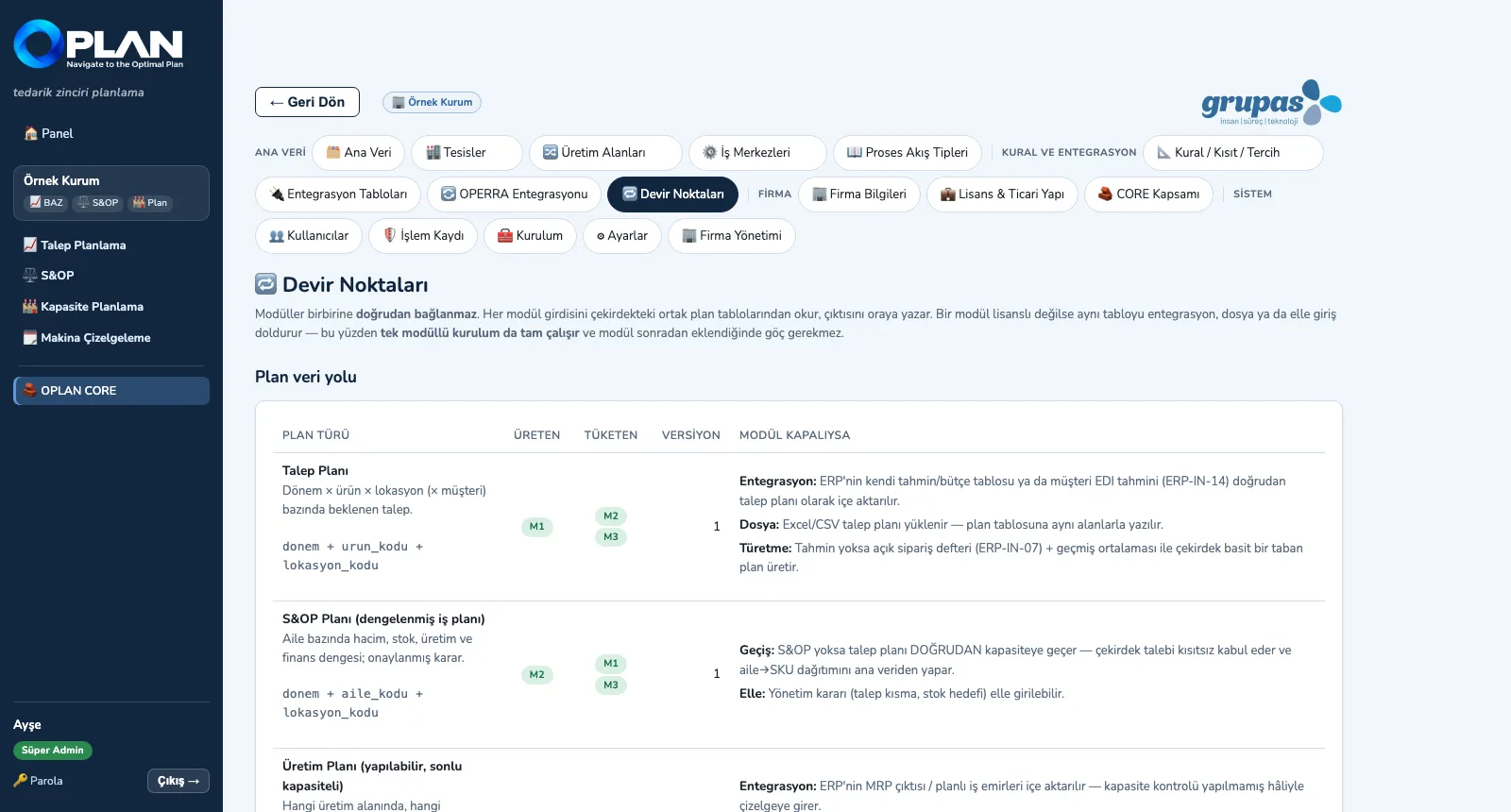
4. See the hand-over pointsWhich plan is produced and consumed by whom, and how the table fills when a module is missing — on one screen.

CORE · Explore

ERP/MES · Connect

Integration and OPERRA

Share the contract, map the fields, monitor the data.
ERP/MES — Share the contract
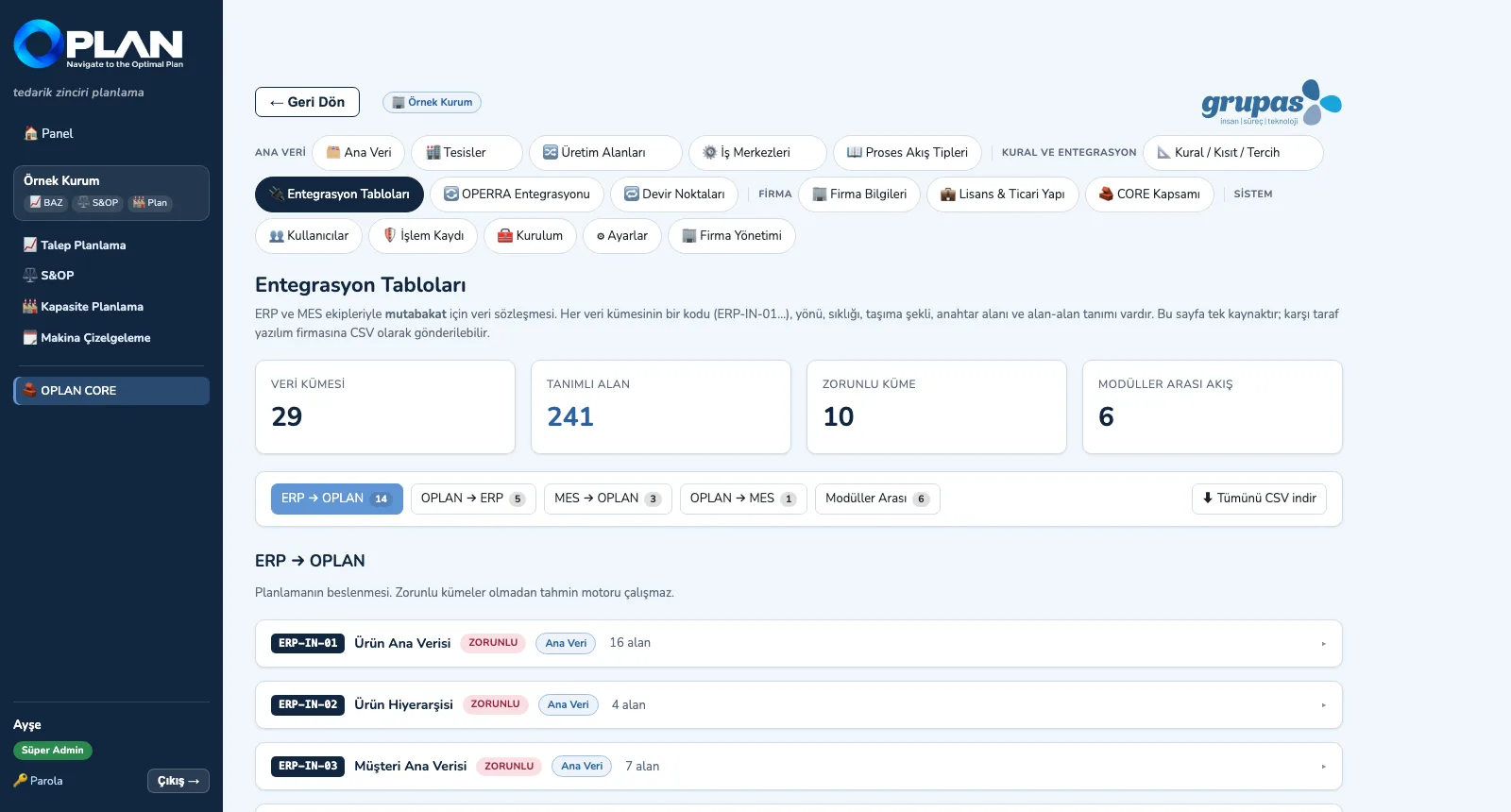
1. Share the contractThe 29 sets, filtered by direction, open with their fields; send them all to the ERP / MES team as one CSV.
ERP/MES — Map the fields
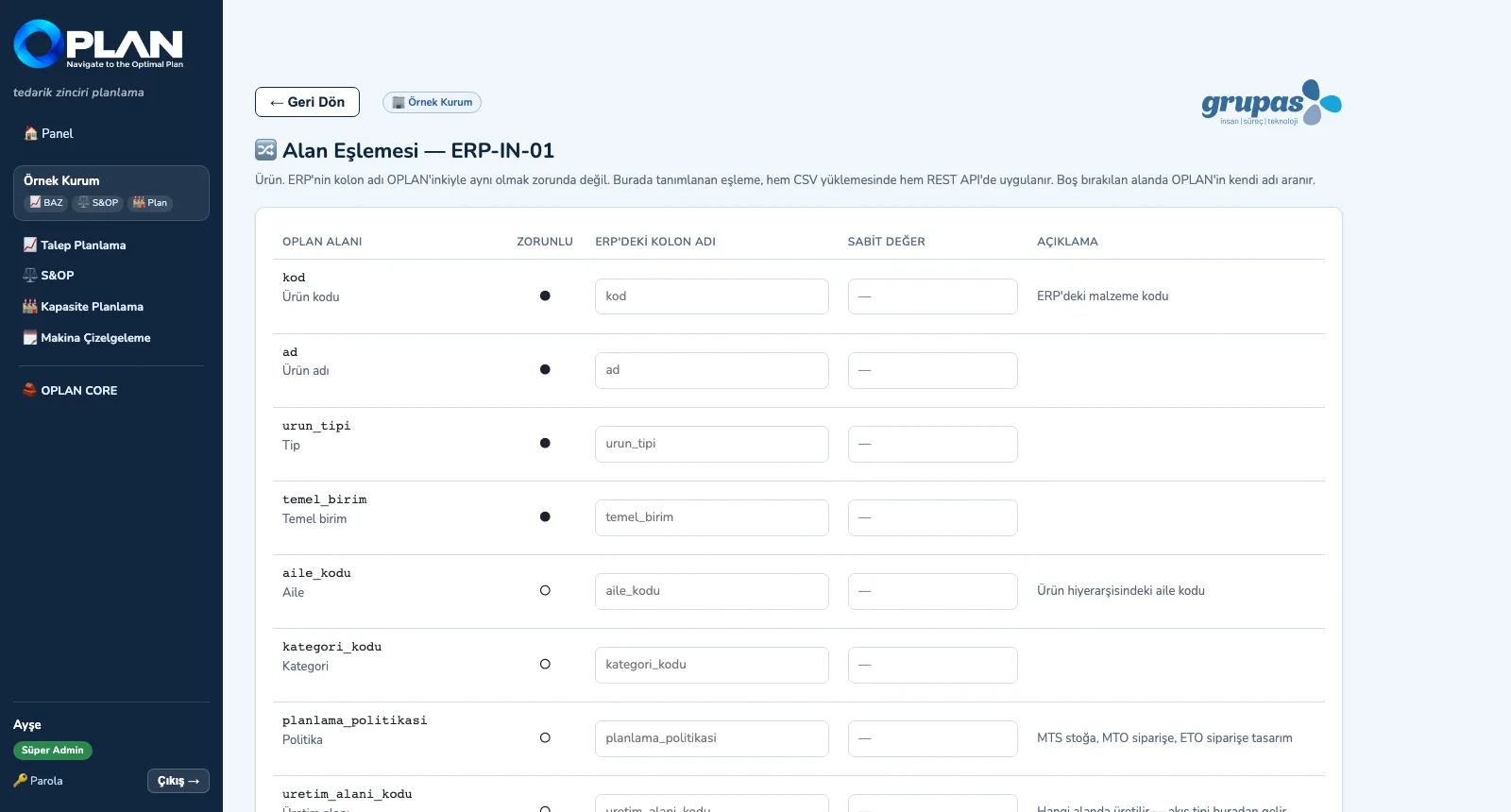
2. Map the fieldsNext to each OPLAN field, enter the ERP's column name or a fixed value; where left blank, OPLAN's own name is used.
ERP/MES — Monitor the status
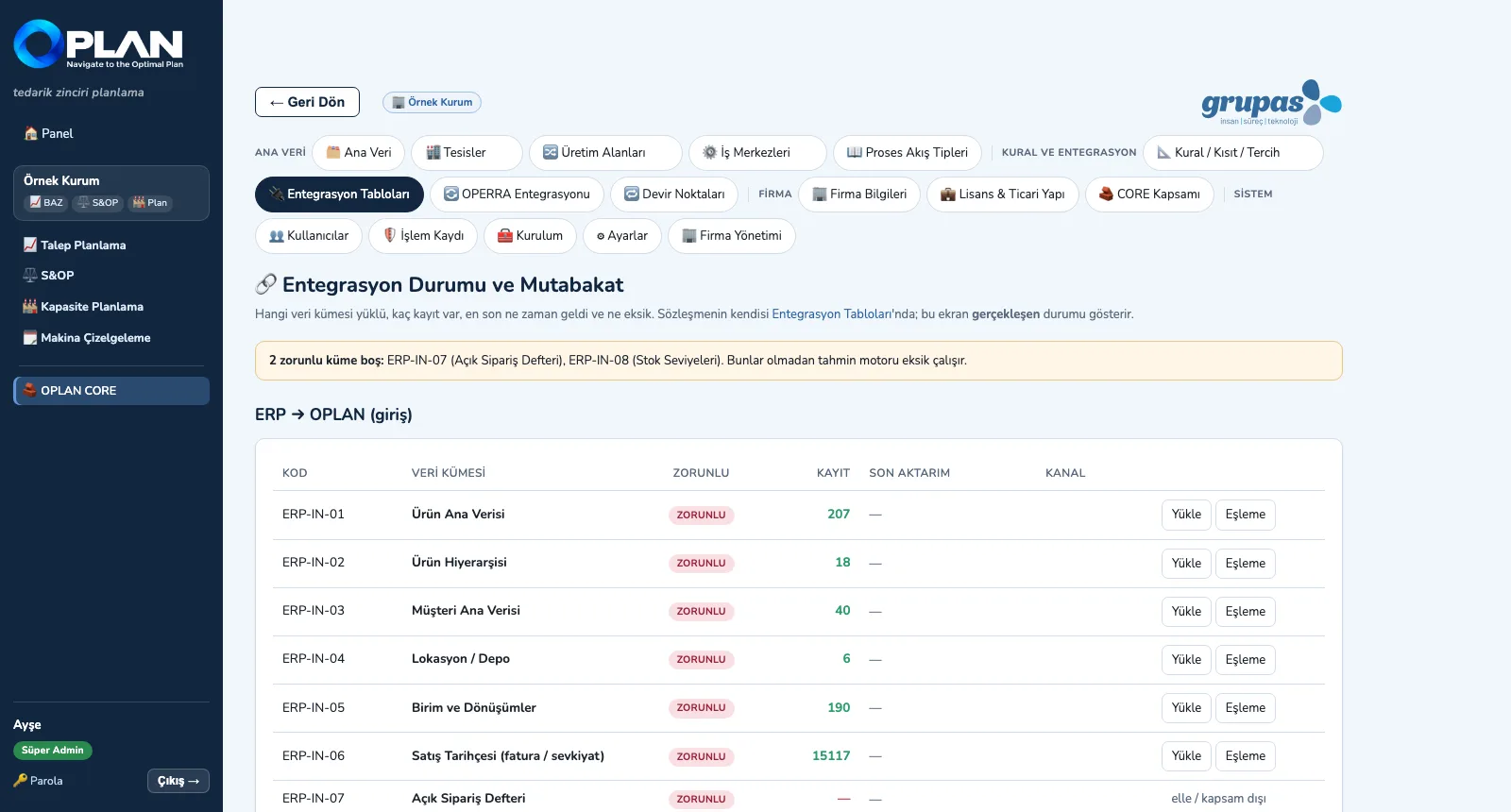
3. Monitor the statusWhich set is loaded, how many records, when it last arrived; empty mandatory sets are flagged at the top.

ERP/MES · Explore

See your plan in OPLAN

Write to us for a live walkthrough on sample plant data.

WhatsApp
GURU

GURU · OPLAN assistant

Ask about modules, licenses and planning concepts.

+90 538 390 29 78 info@grupas.com.tr
Hi, I'm GURU! I can answer your questions about OPLAN and supply chain planning (demand forecasting, S&OP, finite capacity, machine scheduling, ERP integration).